

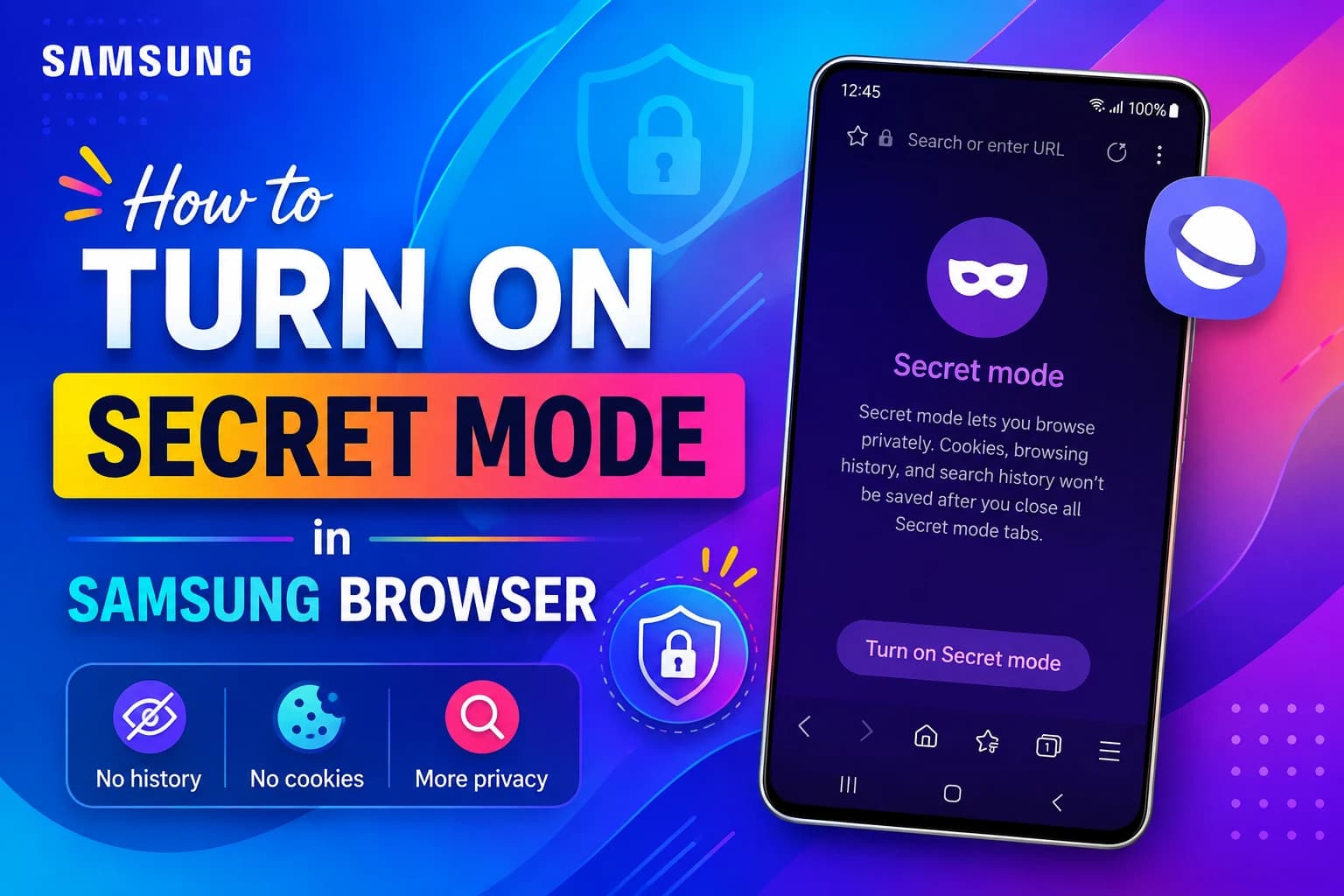
Samsung Browser erases your history and cookies the second you close your last private tab, and most Galaxy owners never switch the feature on. Secret mode in Samsung Browser takes four taps and adds a fingerprint lock that Chrome Incognito still cannot match. Here is the exact tap path on One UI 8.5, the password setup, the limits Samsung buries in its docs, and fixes for every way this feature breaks.
Key Takeaways
-
Secret mode in Samsung Browser deletes history, cookies, cache, and form data once you close every secret tab. Bookmarks you save inside the session stay locked to that session.
-
You can protect the mode with a password and biometrics. Chrome Incognito on Android offers no equivalent password layer.
-
Samsung renamed Samsung Internet to Samsung Browser in March 2026. Older One UI builds still display the original app name.
-
Private browsing hides activity from people holding your phone. Your ISP, your employer network, and the sites you visit still see traffic.
-
Forgetting your Secret mode password forces a full reset. That reset wipes every secret bookmark and saved page on the device.
[IMAGE: Samsung Browser tab switcher showing the face mask Secret mode icon on a Galaxy S25. Alt text: “Turning on secret mode in Samsung Browser from the tab switcher”]
What Secret Mode in Samsung Browser Actually Hides
Secret mode blocks the browser from writing history, cookies, cache, and autofill entries to local storage. Close every secret tab and Samsung Browser dumps that data immediately. Your normal tabs, bookmarks, and sign-ins stay untouched in the standard session.
The app also splits its storage. Bookmarks and saved pages created inside private browsing appear only inside private browsing. Switch back to normal tabs and they vanish from view.
Samsung changed the app name in March 2026. Android Authority confirmed the rebrand in version 29.0.4.45 on the Galaxy S26 series. Samsung shipped the change alongside Browsing Assist, the Galaxy AI layer described on the Samsung Internet Developers blog.
The Data Secret Mode Never Touches
Private browsing protects you from the person holding your phone. It does nothing to the network layer.
-
Your internet service provider still logs every domain you request unless you encrypt DNS traffic or route through a VPN.
-
Websites still fingerprint your device, and any site you sign into links that session to your account.
-
Files you download inside Secret mode land in your normal Downloads folder and survive the session.
-
Samsung Customization Service can keep building an ad profile from browsing signals on Galaxy devices.
Who are you actually hiding from here, the person who borrows your phone or the network behind it? The answer changes what you need to configure. If ad profiling bothers you, disable Samsung Customization Service before you touch browser settings.
WARNING: Secret mode does not make you anonymous. Samsung states this plainly in its own Secret mode support documentation.
[IMAGE: Split screenshot comparing a normal Samsung Browser tab against a dark grey secret tab. Alt text: “Samsung Browser interface color change during private browsing”]
Requirements Before You Switch On Private Browsing
Check four things before you start tapping. Missing any one of them explains most failures people report.
-
Samsung Browser version 29 or newer. Open the Galaxy Store, search the app, and hit Update if the button appears.
-
A Galaxy device running One UI 8 or later. The Galaxy S23 through S26, Z Fold, Z Flip, Tab S, and recent A-series models all qualify.
-
A registered screen lock. Fingerprint protection for Secret mode needs an enrolled biometric under Settings, then Security and privacy.
-
An adult Samsung account. Samsung restricts Secret mode on accounts flagged as child accounts, and the age threshold varies by country.
Devices on One UI 7 and older still label the app Samsung Internet. Every step below works identically on those builds. Only the app name on your home screen differs.
PRO TIP: Update the browser through the Galaxy Store, not the Play Store. Samsung ships One UI feature builds to the Galaxy Store first.
How to Turn On Secret Mode in Samsung Browser Step by Step
Step 1. Open Samsung Browser from your home screen or app drawer.
Load any page so the bottom toolbar appears in full.
Step 2. Tap the Tabs button at the bottom of the screen.
The button shows a square with your current tab count inside it.
Step 3. Tap the Secret mode icon shaped like a face mask.
Samsung places it in the pill-shaped bar at the top of the tab switcher.
Step 4. Choose your protection level on the first-run prompt.
Samsung asks whether you want a password before it opens your first private tab.
Step 5. Tap the Close icon to return to browsing.
The address bar and toolbar shift to dark grey as confirmation.
Step 6. Confirm the mask icon sits in the address bar.
That icon is your only reliable signal that private browsing is live.
[IMAGE: Numbered walkthrough of the four taps required to enable Secret mode. Alt text: “Step by step taps to turn on secret mode in Samsung Browser”]
Lock Secret Mode With a Password
A private session without a lock protects nothing from someone who picks up your unlocked phone.
-
Tap the Menu icon with three dots at the bottom right.
-
Tap Settings, then tap Personal browsing data.
-
Tap Secret mode settings.
-
Toggle Use password on and enter your chosen password twice.
-
Toggle Use biometrics on to open the session with your fingerprint.
Samsung stores that password locally on the device. No Samsung account recovery flow exists for it.
WARNING: Reset Secret mode deletes every secret bookmark, saved page, and setting on the device. Treat it as the last option, never the first.
Configure the Three Settings That Change Behavior
Smart anti-tracking blocks cross-site trackers inside private sessions. Turn it on. The performance cost is negligible on any chipset from the last four years.
Allow screenshots in Secret mode stays off by default. Turn it on only if you need to capture receipts or booking confirmations.
Stay in Secret mode after closing the browser keeps your private session alive between app launches. Convenient for solo phone users, risky on a shared device.
How to Exit Secret Mode
-
Tap the Tabs button at the bottom of the screen.
-
Tap the Tabs icon inside the pill-shaped bar.
-
Tap the Close icon to return to standard browsing.
Samsung purges the session data at that moment. Nothing lands in your regular history.
[IMAGE: Secret mode settings screen showing Use password and Smart anti-tracking toggles. Alt text: “Secret mode settings and password lock options in Samsung Browser”]
Secret Mode vs Chrome Incognito vs Firefox Private Tabs
|
Capability |
Samsung Browser Secret mode |
Chrome Incognito |
Firefox Private |
|---|---|---|---|
|
Password protection |
Yes |
No |
No |
|
Biometric entry |
Yes, fingerprint |
Device lock reauth only |
No |
|
Save bookmarks in session |
Yes, session-only storage |
No |
No |
|
Block screenshots by default |
Yes |
No |
No |
|
Built-in tracker blocking |
Smart anti-tracking |
Limited |
Total Cookie Protection |
|
Persist session after app close |
Optional toggle |
No |
No |
Samsung wins on device-level privacy. Firefox wins on network-level tracker isolation. Chrome finishes last on both counts for Galaxy owners.
Common Secret Mode Problems and How to Fix Them
Problem: The Secret mode icon is missing or greyed out in the tab switcher.
Cause: Samsung disables the feature on child-flagged Samsung accounts and on outdated app builds.
Fix:
-
Open the Galaxy Store and update Samsung Browser to version 29 or newer.
-
Open Settings, tap your Samsung account, and check the registered date of birth.
-
Check for a parental control profile under Settings, then Digital Wellbeing.
-
Force stop the browser and reopen it.
Problem: Secret mode opens without asking for the password.
Cause: The session never ended, so the browser treats it as already authenticated. Galaxy owners report this constantly in the Samsung Members community.
Fix:
-
Open Settings, then Personal browsing data, then Secret mode settings.
-
Turn off Stay in Secret mode after closing the browser.
-
Exit Secret mode fully using the Tabs button, then close the app from recents.
-
Reopen the browser and enter Secret mode to trigger the prompt.
Problem: You forgot the Secret mode password.
Cause: Samsung keeps the credential on-device with no cloud recovery path.
Fix:
-
Open Settings, then Personal browsing data, then Secret mode settings.
-
Tap Reset Secret mode.
-
Confirm the wipe and accept the loss of secret bookmarks and saved pages.
-
Set a fresh password and enable biometrics immediately.
Problem: Visited sites still appear in your history after a private session.
Cause: You browsed in a normal tab, or a synced Google account logged the activity server-side.
Fix:
-
Confirm the mask icon appeared in the address bar during the session.
-
Check Google My Activity for server-side records tied to your account.
-
Follow the full walkthrough on how to clear browsing history on Android.
-
Set auto-delete for cookies using the guide to clearing browser cookies on Android.
[IMAGE: Reset Secret mode confirmation dialog on a Galaxy device. Alt text: “Resetting a forgotten secret mode password in Samsung Browser”]
Pro Moves Most Galaxy Users Miss in Secret Mode
Your keyboard leaks what your browser hides. Samsung Keyboard and Gboard both retain clipboard entries copied during private sessions. Clear them manually using the walkthrough on finding the clipboard on Android.
Pair private browsing with encrypted DNS for real network coverage. Turning on Private DNS on your Android phone takes about a minute and hides your lookups from Wi-Fi operators.
Keep a dedicated secret bookmark set for research you never want surfacing in autocomplete. Samsung isolates those bookmarks from the normal session completely.
Ever handed your phone to a colleague mid-conversation? Turn off the stay-signed-in toggle first. One tap on the tab switcher exposes an entire session otherwise.
Check your One UI version before you troubleshoot anything. Feature paths shifted with the One UI 8.5 rollout, and older builds place Secret mode settings under Privacy rather than Personal browsing data.
Frequently Asked Questions About Secret Mode in Samsung Browser
Q: How do I turn on Secret mode in Samsung Browser?
A: Open the app, tap the Tabs button at the bottom, then tap the face mask icon. Tap Close to start browsing privately. The address bar turns dark grey and shows a mask icon while the session runs.
Q: Does Secret mode hide my activity from my internet provider?
A: No. Your ISP still sees every domain you request. Secret mode only stops your Galaxy device from storing history, cookies, and cache locally. Encrypted DNS or a VPN handles the network layer.
Q: Can someone see my Secret mode history on my Galaxy phone?
A: Not after you close every secret tab. Samsung Browser deletes the session data at that point. Anyone who picks up your phone during an active session sees the open tabs unless you enabled the password lock.
Q: How do I reset my Secret mode password if I forgot it?
A: Go to Settings, then Personal browsing data, then Secret mode settings, then tap Reset Secret mode. Samsung provides no recovery option. The reset erases all secret bookmarks and saved pages permanently.
Q: Is Secret mode the same as Incognito mode?
A: The core function matches. Secret mode adds a password lock, biometric entry, session-only bookmarks, and screenshot blocking. Chrome Incognito on Android offers none of those four.
Q: Why is my browser called Samsung Browser instead of Samsung Internet?
A: Samsung renamed the app in March 2026 starting with the Galaxy S26 series and One UI 8.5. Every feature carried over, including Secret mode. Devices on older One UI builds still show the Samsung Internet name.
Q: Do downloads from Secret mode stay on my phone?
A: Yes. Files land in your standard Downloads folder and survive after you close the session. Delete them manually through My Files if you need them gone.
Your Next Move After Locking Down Private Browsing
Open Secret mode settings right now and check two toggles: Use password and Smart anti-tracking. Those two changes cover the gap between casual privacy and actual device-level protection. The whole thing takes under a minute.
Then widen the net. Encrypted DNS, clipboard hygiene, and a scheduled cookie cleanup close the holes private browsing leaves open on every Galaxy device.
Running into a Secret mode quirk on your specific model? Drop your device and One UI version in the comments and describe what you see on screen. The tap paths shift between builds, and someone else on the same firmware has probably hit the identical wall.





Responses (0 )